
Pipedrive is an outstanding CRM for businesses offering pool maintenance, pool repair, and pool resurfacing services. With Pipedrive you can track sales for recurring services like pool maintenance as well as sales for repairs and resurfacing projects all in one place. That way you can track not only individual sales, but the lifetime value of your average customers. Want to use Pipedrive for the delivery of your services as well? No problem! You can track every detail your technicians need to know for their service appointments right within the deal.
This guide walks you through setting up Pipedrive specifically for a pool maintenance and repair company.
In this guide we'll cover:
- Activating your 30-day free Pipedrive trial
- Create your Maintenance Pipeline and Repair Pipeline
- Deal probability and deal rotting
- Creating Pipeline Specific custom detail fields
- Creating your first deal
- Deal Statuses and marking deals won or lost
- Setting up custom activity types
- Best practices working in Pipedrive
Prefer to watch? Check out this step-by-step video walk through of how to set up your Pipelines, custom fields and activity types, deal rotting, and probability and more.
Activating your 30-day free Pipedrive trial
- Start your extended 30-day free Pipedrive trial.
- Complete the signup form, then exit the onboarding flow.
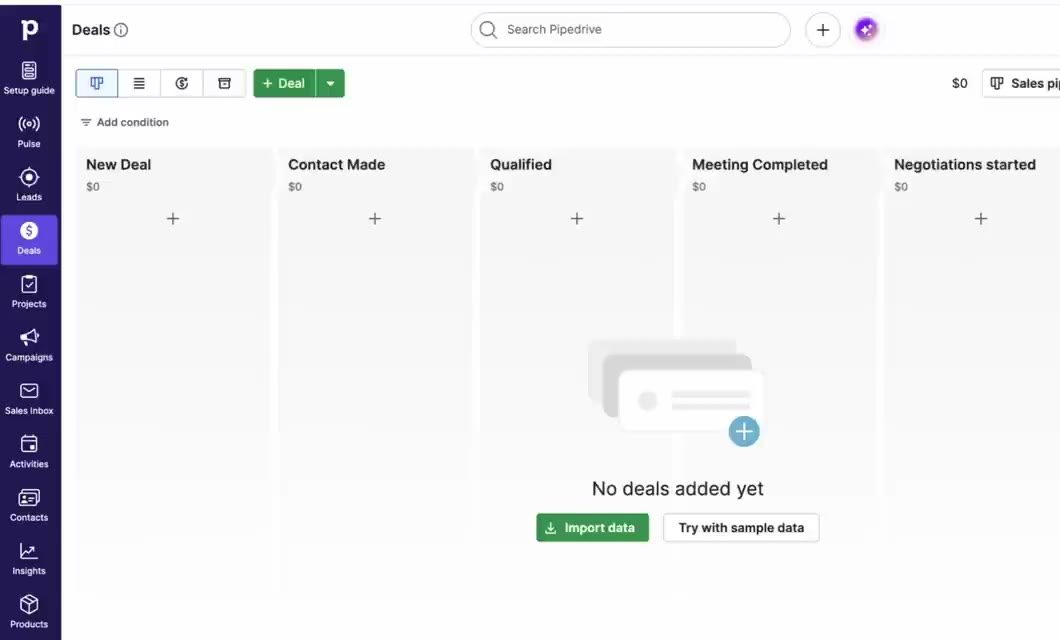
- Click Deals (the money icon in the left menu). If your pipeline is empty, click Try with sample data to get practice deals to follow along with.
- Have your estimators, maintenance, and repair team members download the Pipedrive mobile app (iPhone or Android) that way they can add (and access) photos, pool system details, and notes directly to Pipedrive while onsite.
 Claim Your 30-day Free Trial!
Create your Maintenance Pipeline and Repair Pipeline
If you're a pool service company offering both maintenance services and repair services, you'll likely want to create 2 different Pipelines for managing these two unique sales processes.
If you want to set up your Pipelines manually, on your own, here's how: On the Deals page, click the pencil icon to edit stages, and use the pipeline menu to add a second pipeline. Here are the Pipelines, Stages, and stage definitions recommended for pool companies using the Pipedrive CRM:
Pipeline 1: Maintenance Services
- New Inquiry: request received, not yet contacted
- Contacting: outreach underway, awaiting response
- Site Visit Scheduled: pool evaluation appointment booked
- Quote Sent: service pricing delivered
- Agreement Sent: service agreement delivered for signature
When the service agreement is signed, mark the deal won.
Pipeline 2: Repairs & Equipment
- New Request: repair or equipment request received
- Contacting: outreach underway, awaiting response
- Inspection Scheduled: technician visit booked
- Inspection Complete: issue diagnosed, scope documented
- Estimate Sent: repair estimate delivered
- Estimate Approved: customer approved, ready to schedule
- Repair Scheduled: crew and parts lined up
When the repair is complete, mark the deal won.
Notice neither pipeline has a “Signed” or “Complete” stage. Won and lost are statuses, not stages (more on that below).
Deal probability and deal rotting
Deal Probability and Rotting is set individually on each stage of each of your pipelines. Both settings can be edited exactly where you edited your stage names (click the pencil icon on the top right of your setup page). Here's a summary of each feature:
- Probability: enter a rough percent chance of winning at each stage, lowest at New Inquiry or New Request and highest at Agreement Sent or Estimate Approved.
- Rotting: a deal card turns red when it sits in a stage too long with no action taken on the opportunity, with action being defined as an activity being created or completed, a note being added to the Deal, or an email being sent or received. You want Deal Rot turned on when you're waiting on the customer (Contacting, Quote Sent, Agreement Sent, Estimate Sent) and sales should be following up. Keep the timeline short for Repairs, since a broken pump or a green pool won't wait. Leave it off for scheduled visits and inspections.
We recommend the following starting points for Probability and Rotting for Pool and Spa Sales Pipelines:
Maintenance Services Pipeline
| Stage | Probability | Rotting |
|---|---|---|
| New Inquiry | 5% | 1 day |
| Contacting | 5% | 1 day |
| Site Visit Scheduled | 15% | -- |
| Quote Sent | 20% | 2 days |
| Agreement Sent | 30% | 3 days |
Repairs & Equipment Pipeline
| Stage | Probability | Rotting |
|---|---|---|
| New Request | 5% | 1 day |
| Contacting | 5% | 1 day |
| Inspection Scheduled | 20% | -- |
| Inspection Complete | 20% | 1 day |
| Estimate Sent | 30% | 2 days |
| Estimate Approved | 100% | 7 days |
| Repair Scheduled | 100% | -- |
Creating Pipeline Specific custom detail fields
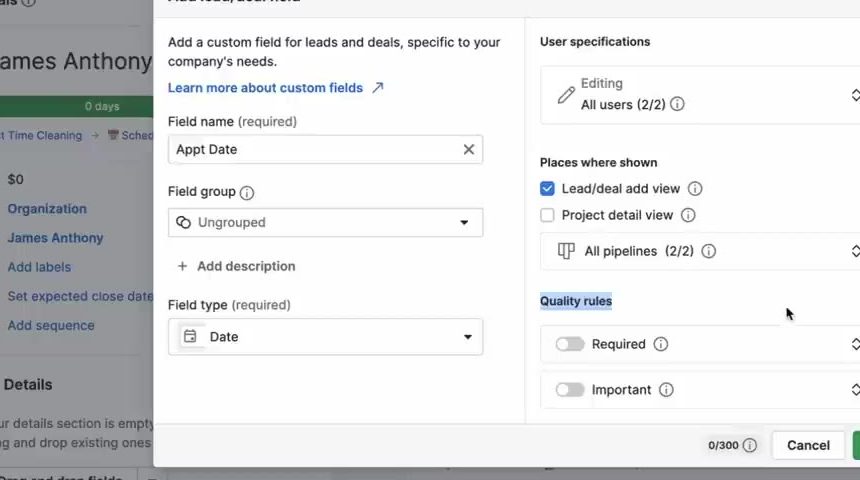
You can create custom Person, Organization, and Deal detail fields so that you can capture sales details specific to your process. To create custom Deal detail fields, open any deal and click the three dots next to Details and then click Customize fields.
Want us to set up your Pipedrive account for you for free? Request it here.
For Pool Professionals, we recommend the following custom detail fields in Pipedrive. Under “Places where shown,” set each field to appear only in the pipeline(s) listed below.
| Field Name | Field Type | Add Deal Window | Applicable Pipeline | Field Options |
|---|---|---|---|---|
| Site Visit / Inspection Date | Date | ✓ | Both Pipelines | -- |
| Source | Single option | ✓ | Both Pipelines | Referral, Website, Online search, Social media, Door hanger/Neighbor, Real estate agent, Existing customer, Other |
| Customer Type | Single option | -- | Both Pipelines | Residential, Commercial (HOA), Commercial (non-HOA) |
| Service Address | Address | ✓ | Both Pipelines | -- |
| Pool Type | Single option | -- | Both Pipelines | In-ground, Above-ground, Spa/Hot tub, Pool + Spa |
| Pool Surface | Single option | -- | Both Pipelines | Plaster, Pebble, Vinyl, Fiberglass, Tile |
| Pool Size (gallons) | Numerical | -- | Both Pipelines | -- |
| Sanitation System | Single option | -- | Both Pipelines | Chlorine, Saltwater, Mineral, UV/Ozone, Other |
| Gate Access Notes | Text | -- | Both Pipelines | -- |
| Pets | Single option | -- | Both Pipelines | Yes, No |
| Pump Type | Single option | -- | Both Pipelines | Single-speed, Dual-speed, Variable-speed |
| Filter Type | Single option | -- | Both Pipelines | Sand, Cartridge, DE |
| Heater Type | Single option | -- | Both Pipelines | Gas, Heat pump, Solar, None |
| Equipment Age (years) | Numerical | -- | Both Pipelines | -- |
| Service Frequency | Single option | -- | Maintenance Pipeline | Weekly, Bi-weekly, Monthly |
| Monthly Service Rate | Monetary | -- | Maintenance Pipeline | -- |
| Service Day | Single option | -- | Maintenance Pipeline | Monday, Tuesday, Wednesday, Thursday, Friday |
| Assigned Technician | User | -- | Maintenance Pipeline | Any user on your Pipedrive account |
| Service Start Date | Date | -- | Maintenance Pipeline | -- |
| Issue Type | Multiple options | ✓ | Repairs Pipeline | Leak, Pump/Motor, Filter, Heater, Plumbing, Surface/Plaster, Green pool/Algae, Tile, Other |
| Urgency | Single option | ✓ | Repairs Pipeline | Emergency, Within a week, Flexible |
| Repair Date | Date | -- | Repairs Pipeline | -- |
Make the right fields required at the right stage
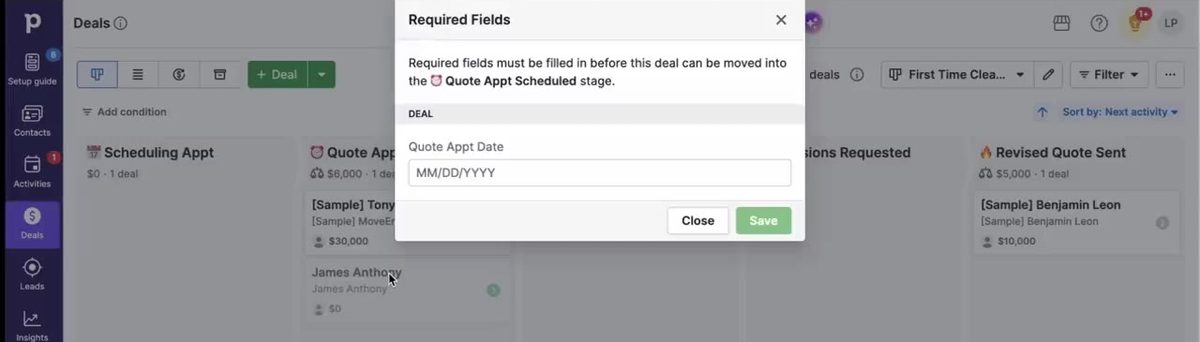
Use each field's quality rules to make it important one stage early and required where you must have it. For example, require Source and Service Address when a deal is added, Issue Type and Urgency in New Request, pool and equipment details in Quote Sent, and Repair Date in Repair Scheduled.
Creating your first deal
- Click + Deal, the + at the top of any stage, or press D.
- Type the customer's name. Pipedrive checks for an existing contact so you don't create duplicates.
- Add their phone and email, plus the organization for commercial or HOA accounts, then click Save.
Choose the right pipeline when you add the deal. Inside it you can schedule the site visit or inspection, add notes and photos, log calls and emails, and attach the quote or estimate.
Deal Statuses and marking deals won or lost
Click Won when a service agreement is signed or a repair is complete, and Lost when a deal falls through. Won and lost deals drop out of the default pipeline view once they are won or lost, but you can always find them again using Pipedrive's search bar. They drop out of the default pipeline view because that view only shows you Open deals. If you want to always be able to see ALL Deals, create a custom view that shows you all Open, Won, and Lost deals. And then pin it to the top of the Pipeline so you can easily toggle between views.
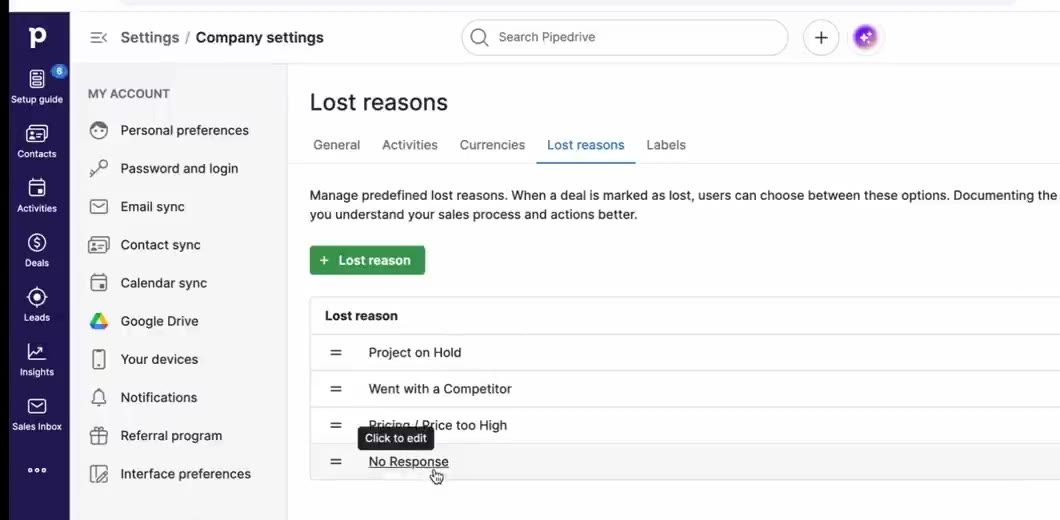
Set up your lost reasons in Company settings → Lost reasons:
- Toggle Allow free-form reasons off.
-
Then add custom lost reasons. Here are a few we recommend:
- Too expensive
- Went with Another Company
- Project on Hold / Not Ready
- Handling Themselves
- Unresponsive
Tip: “Not Ready” deals make a great list to call before pool season opens.
When a won repair customer wants ongoing service, add a new deal in the Maintenance Services pipeline for the same person. Their record keeps the full history across both.
Setting up custom activity types
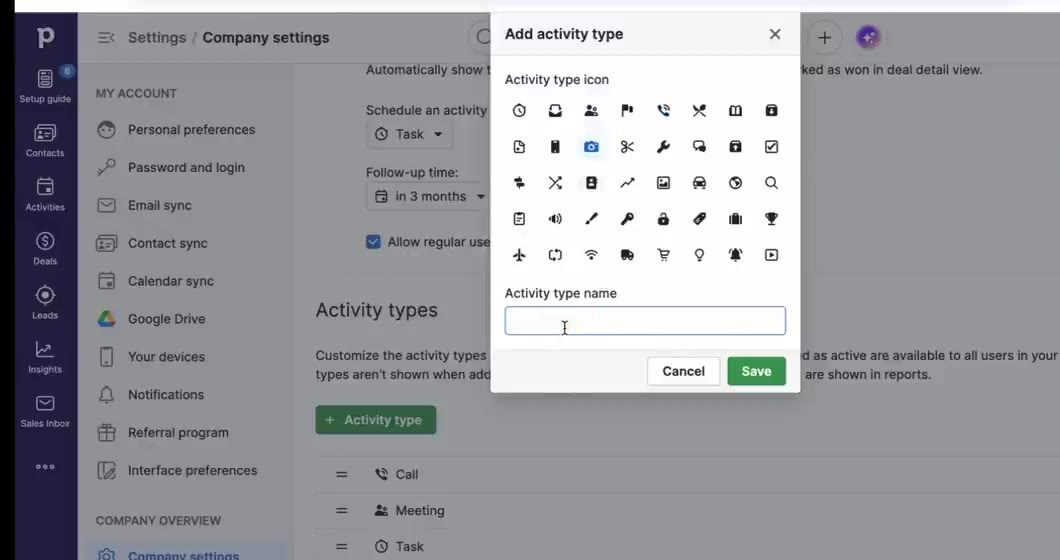
Custom activity types allow you to easily report on things like the number of site visits completed each week or the number of quotes sent out each month. To create custom activity types, open any deal, click the Activity tab, then the gear icon. Then add activity types that align with your process, such as Site Visit/Inspection and Quote/Estimate Follow-Up.
Best practices working in Pipedrive
Each morning, go to Activities, filter to what's due today or overdue and assigned to you, and work down the list: open the deal, do the follow-up, mark it done, and schedule what's next.
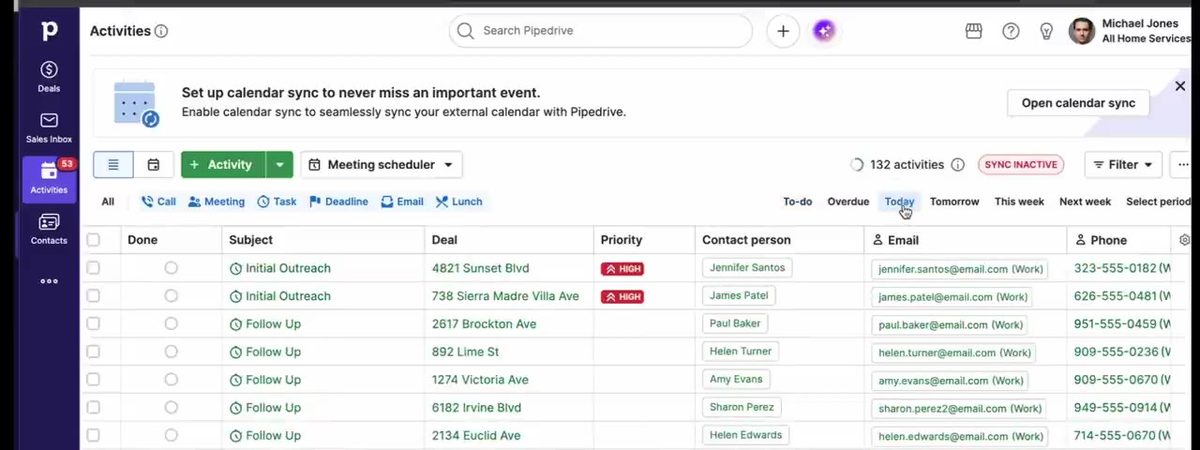
- Emergency repair request? Schedule a call for today and mark Priority as High.
- Agreement sent? Schedule a follow-up for two days out.
- At an inspection? Add equipment photos and notes in the mobile app before you leave.
Every open deal should always have a next planned activity. A yellow warning triangle on a deal card means nothing is scheduled, so that deal is at risk.
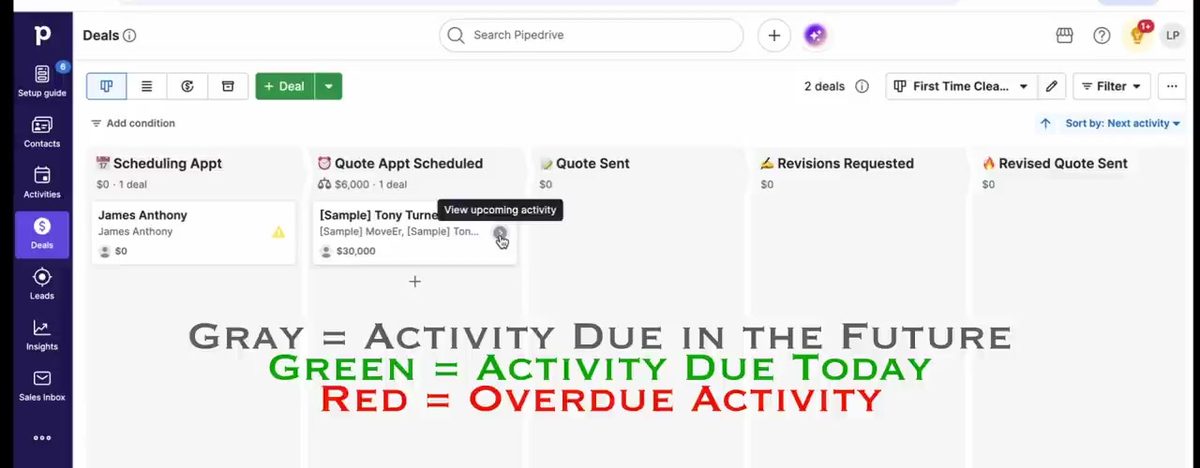
Once you've completed all activities assigned to you that are overdue or due today, then and only then, head over to the Pipeline view. See any yellow triangles? Add a future planned activity to ensure you never miss a sale!