
Solar sales are long and detail-heavy: site visits, roof assessments, system designs, financing, and sometimes HOA approval, all before a homeowner signs. Pipedrive keeps every one of those details on the deal, so your team always knows what's next.
This guide walks you through setting up Pipedrive specifically for a solar installer.
Want the Solar Installer Edition of our Pipedrive setup guide? Download it here.
In this guide we'll cover:
- Getting started with your 30-day free trial
- Set up your New Solar Install pipeline
- Deal probability and deal rotting
- Add solar-specific custom detail fields
- Creating your first deal
- Deal Statuses and marking deals won or lost
- Set up your activity types
- Best practices for getting started in Pipedrive
Prefer to watch? Check out this step-by-step video walk through. The example business is different, but every click is the same.
Getting started with your 30-day free trial
- Start your extended 30-day free Pipedrive trial.
- Complete the signup form, then exit the onboarding flow.
- Click Deals (the money icon in the left menu). If your pipeline is empty, click Try with sample data to get practice deals to follow along with.
- Make sure your field team downloads the Pipedrive mobile app (iPhone or Android) that way they can add roof photos, measurements, and notes directly to Pipedrive while onsite.
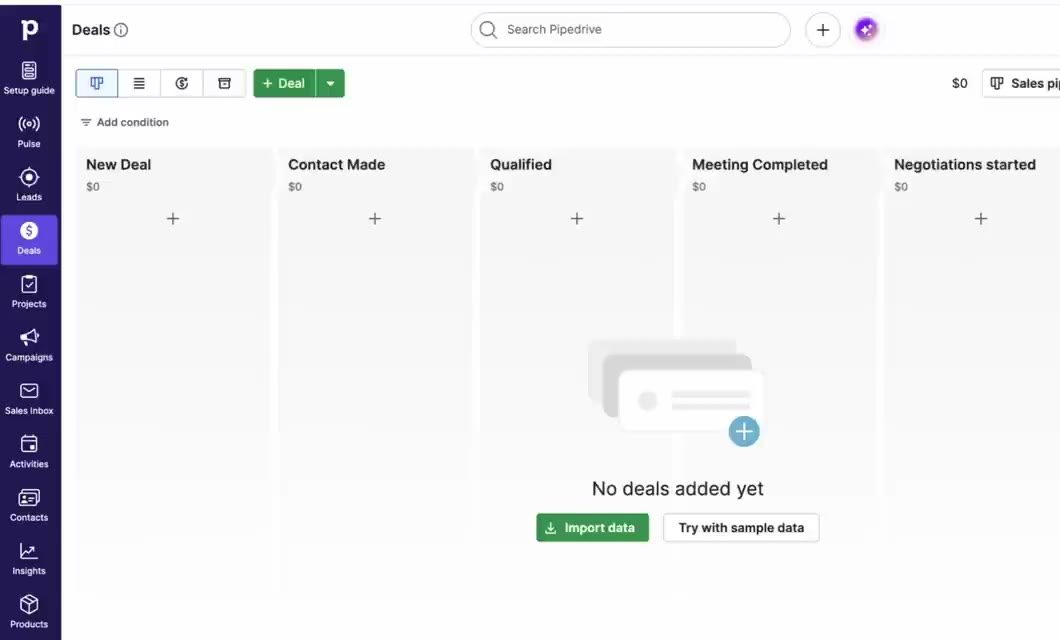
 Claim Your 30-day Free Trial!
Set up your New Solar Install pipeline
Click the pencil icon in the top righthand corner of your pipeline to rename the default pipeline (for example, “Residential Solar”) and rename the default stages. These stages map to the typical solar sales process:
- New: new inquiry received, not yet contacted
- Site Visit Scheduled: appointment booked for the roof and site evaluation
- Site Visit Complete: on-site visit done, usage and roof data collected
- Proposal Sent: system design and quote delivered to the homeowner
Did the proposal get signed? It may be tempting to have a “Proposal Signed” stage, but it may not actually be necessary. Instead, once the homeowner signs the proposal, mark the deal as won. Won and lost are Deal statuses, not stages, and using statuses correctly keeps your conversion reports accurate (more on that below).
We recommend starting with one pipeline for residential sales. Do you also sell commercial systems? Does the sales process differ greatly (>40%) from residential sales? If so, you may want to also create a pipeline for Commercial Sales.
Tip: Want to take some liberties with your stage names? No problem! Just be sure to use action-oriented, past-tense names such as “Estimate Scheduled” or “Contract Sent” rather than more ambiguous names like “Estimating” or “Contracting.”
Deal probability and deal rotting
Both settings can be edited exactly where you edited your stage names (click the pencil icon on the top right of your setup page).
- Probability: enter a rough percent chance of winning a deal at each stage, lowest at New and highest at Proposal Sent. Pipedrive uses it to calculate the weighted value of your pipeline. You can update these estimates later using your actual win rate data.
- Rotting: a deal card turns red when it sits in a stage too long with no activity. Turn it on where your team should be reaching out (New, Site Visit Complete, and Proposal Sent) and leave it off for Site Visit Scheduled, where you're simply waiting on the appointment.
We recommend the following starting points for Probability and Rotting:
| Stage | Probability | Rotting |
|---|---|---|
| New | 10% | 2 days |
| Site Visit Scheduled | 15% | -- |
| Site Visit Complete | 25% | 2 days |
| Proposal Sent | 30% | 4 days |
Add solar-specific custom detail fields
Open any deal and click Customize fields. Add the following fields, choosing the most specific field you can for each custom detail:
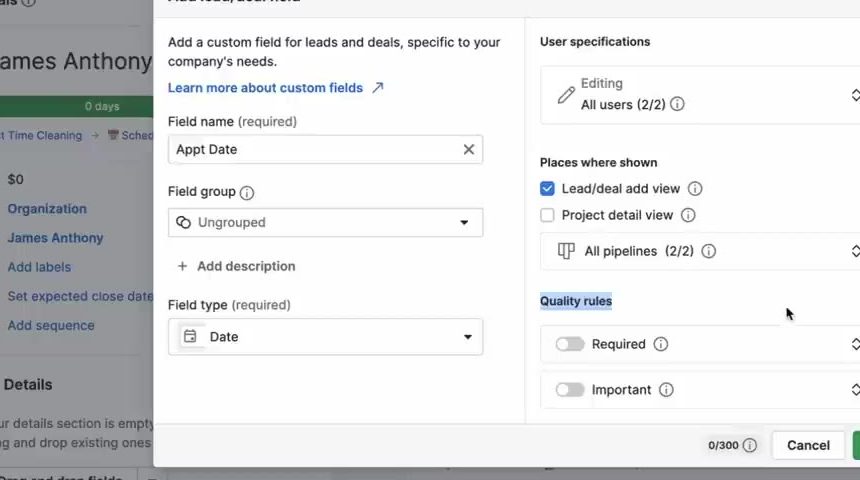
| Field Name | Field Type | Add Deal Window | Field Options |
|---|---|---|---|
| Source | Single option | ✓ | Door knock, Referral, Online ad, Canvass, Event, Utility mailer |
| Utility Company | Single option | -- | The utilities in your service area |
| Monthly Electric Bill (Avg) | Monetary | -- | -- |
| Annual kWh Usage | Numerical | -- | -- |
| Roof Type | Single option | -- | Asphalt shingle, Tile, Metal, Flat/TPO, Other |
| Roof Age (Years) | Numerical | -- | -- |
| Roof Condition | Single option | -- | Good, Needs repair, Needs replacement |
| Shading Issues | Single option | -- | Yes, No |
| HOA Approval Required | Single option | -- | Yes, No |
| HOA Approval Status | Single option | -- | Not required, Pending, Approved, Denied |
| System Size (kW DC) | Numerical | -- | -- |
| Number of Panels | Numerical | -- | -- |
| Inverter Type | Single option | -- | String, Microinverter, Power optimizer |
| Battery Storage | Single option | -- | Yes, No |
| Battery Model | Text | -- | -- |
| Finance Type | Single option | -- | Cash, Loan, Lease, PPA |
| Lender / Finance Company | Text | -- | -- |
| System Price (Gross) | Monetary | -- | -- |
| Incentives & Tax Credits | Monetary | -- | -- |
| Net System Price | Monetary | -- | -- |
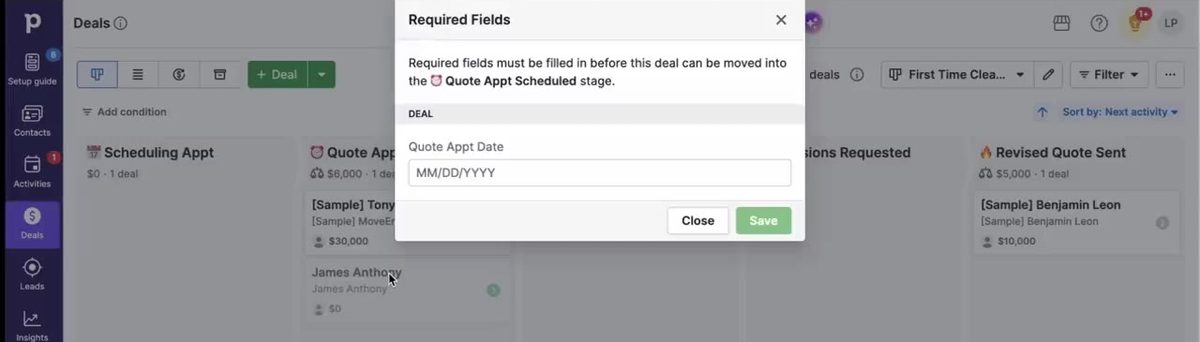
Make the right fields required at the right stage
Use each field's quality rules to make it important one stage early and required in the stage where you must have it. Required fields block a deal from moving forward until they're filled in. For example:
- Source: required as soon as the deal is added
- Roof and usage fields: required in Site Visit Complete
- System Design and System Price fields: required in Proposal Sent
Creating your first deal
- Click + Deal, the + at the top of any stage, or press D.
- Type the homeowner's name. Pipedrive checks for an existing contact so you don't create duplicates.
- Add their phone and email, then click Save.
Inside the deal you can schedule the site visit, add notes and roof photos, log emails and calls, and attach the proposal, so the whole sale lives in one place. Most residential solar deals only need a person, not an organization.
Deal Statuses and marking deals won or lost
When the homeowner signs your proposal, click Won on the deal or drag it into the “Won” bucket at the bottom of your Pipeline. If you lose a deal, click Lost and pick a lost reason.
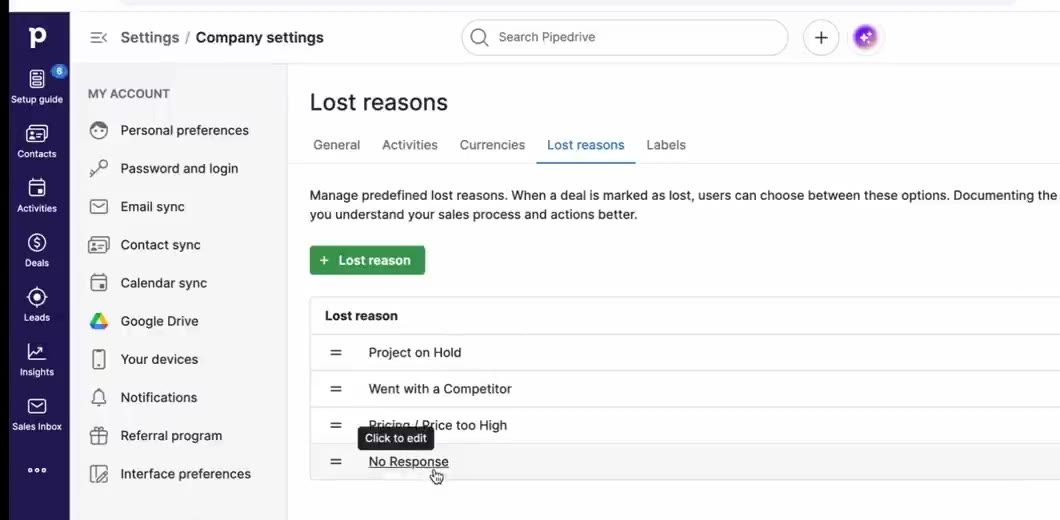
Set up your lost reasons in Company settings → Lost reasons and turn off free form reasons so your team picks from a list. Keep them actionable, for example: No Response, Price Too High, Went with a Competitor, Roof Not Suitable, and Project on Hold. Later, you can pull every “Project on Hold” deal and reach out when your pricing or incentives change.
Set up your activity types
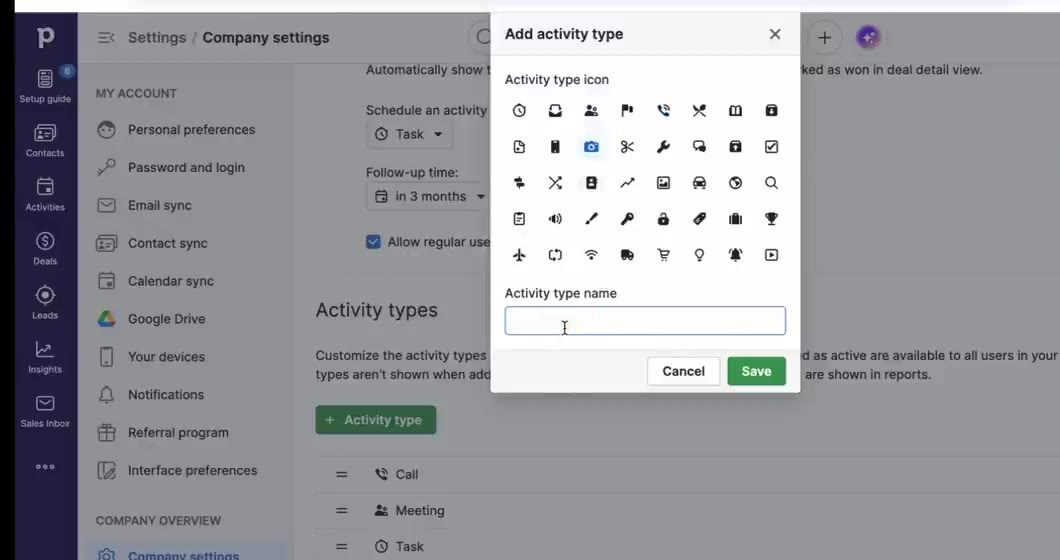
Open a deal, click the Activity tab, then the gear icon. Add activity types that match your process, such as Site Visit, Proposal Review, and Proposal Follow-Up, and turn off the defaults you don't need. Specific activity types let you report on things like how many site visits each rep completes per week.
Best practices for getting started in Pipedrive
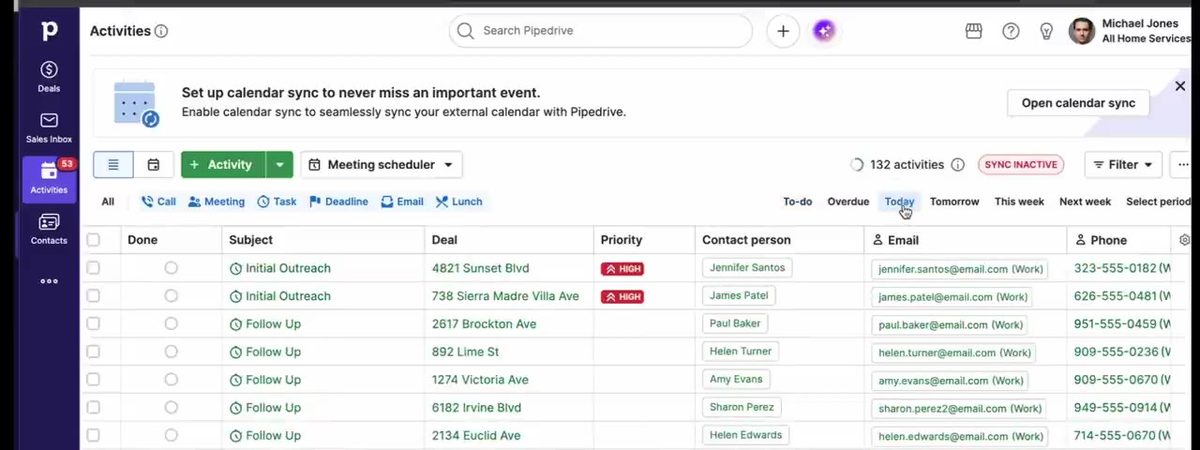
Each morning, go to Activities, filter to what's due today or overdue and assigned to you, and work down the list: open the deal, do the follow-up, mark it done, and schedule what's next.
- After a site visit, schedule the proposal review before you leave the driveway.
- Waiting on HOA approval? Schedule a check-in so the deal doesn't stall.
- Proposal sent? Schedule a follow-up call for two or three days out.
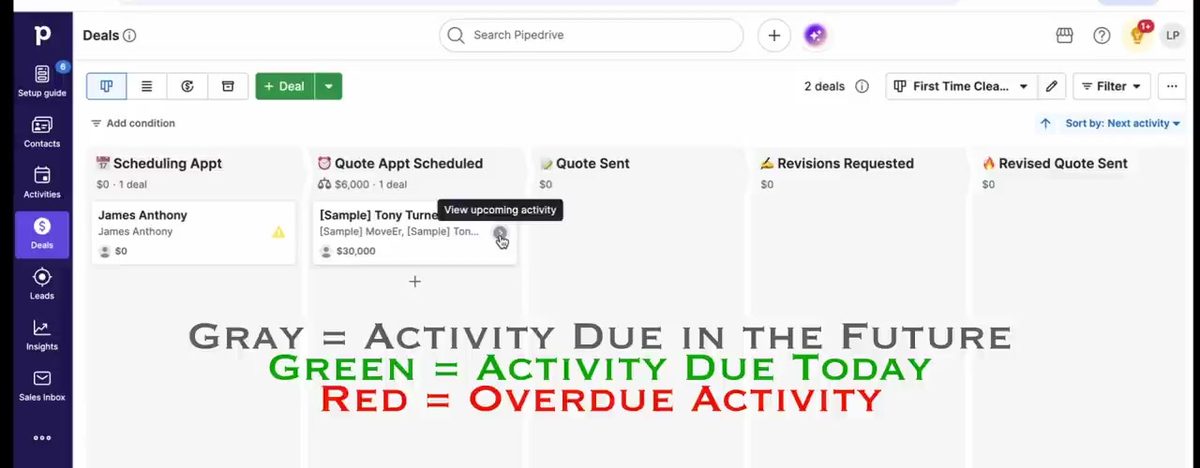
Every open deal should always have a next planned activity. A yellow warning triangle on a deal card means nothing is scheduled, so that deal is at risk. Once you've completed all of your activities due today, check that there are no Open Deals in your Pipeline with a yellow triangle. If there are, add a follow up activity to that Deal.
Want help setting up Pipedrive for your solar business?
If you're looking for the best Pipedrive consultant for the solar industry, look no further. Book your working session with Ops Designed today.
Book a Working Session