
For a window and gutter cleaning company, sales come down to speed: get the quote appointment on the calendar, send the quote, and handle revisions fast. Pipedrive shows you exactly where every quote stands and which customers need a follow-up today.
This guide walks you through setting up Pipedrive specifically for a window and gutter cleaning company.
In this guide we'll cover:
- Activating your 30-day free Pipedrive trial
- Set up your quote pipeline
- Deal probability and deal rotting
- Add custom detail fields and service labels
- Creating your first deal
- Deal Statuses and marking deals won or lost
- Setting up custom activity types
- Best practices working in Pipedrive
Prefer to watch? Check out this step-by-step video walk through of this exact window and gutter cleaning setup.
Activating your 30-day free Pipedrive trial
- Start your extended 30-day free Pipedrive trial.
- Complete the signup form, then exit the onboarding flow.
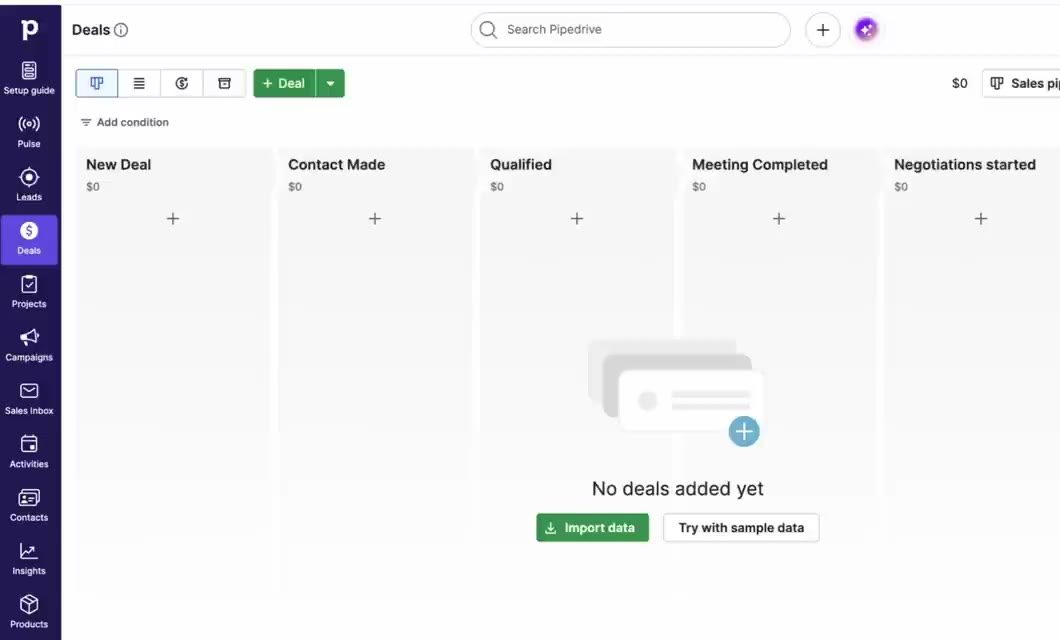
- Click Deals (the money icon in the left menu). If your pipeline is empty, click Try with sample data to get practice deals to follow along with.
- Have your estimators and crew members download the Pipedrive mobile app (iPhone or Android) that way they can add (and access) photos, property details, and notes directly to Pipedrive while onsite.
 Claim Your 30-day Free Trial!
Set up your quote pipeline
If you're a home services provider, replying to new sales inquiries quickly, scheduling estimates, and getting services scheduled is of the utmost importance. In this section learn the exact stage recommendations that come from a decade of Pipedrive setup experience OR:
To set Pipedrive up on your own: Click the pencil icon in the top righthand corner of your pipeline to rename the default pipeline and its stages. Use past-tense, action-oriented names so everyone knows exactly when a deal belongs in each stage:
- Scheduling Appointment: new inquiry; you're reaching out to book the quote appointment
- Quote Appointment Scheduled: the appointment is on the calendar
- Quote Sent: the quote is in the customer's hands
- Revisions Requested: the customer asked for updates to the quote
- Revised Quote Sent: the updated quote is out
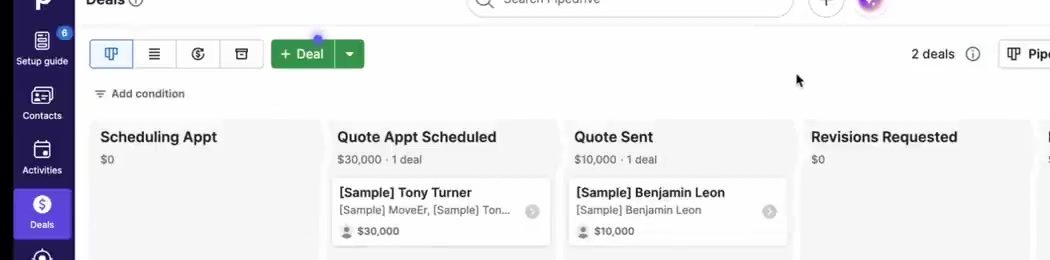
Why a separate Revisions Requested stage? Revisions take time and might imply something was missed in the quote appointment, so this stage shows you how often revisions happen and how long deals sit waiting on them.
Did the quote get signed? It may be tempting to have a “Quote Signed” stage, but it isn't necessary. Instead, once the customer signs the quote, mark the deal as won. Won and lost are Deal statuses, not stages, and using statuses correctly keeps your conversion reports accurate (more on that below).
Tip: Want to take some liberties with your stage names? No problem! Just be sure to use action-oriented, past-tense names such as “Estimate Scheduled” or “Contract Sent” rather than more ambiguous names like “Estimating” or “Contracting.”
Deal probability and deal rotting
Deal Probability and Rotting is set individually on each stage of your pipeline. Both settings can be edited exactly where you edited your stage names (click the pencil icon on the top right of your setup page). Here's a summary of each feature:
- Probability: enter a rough percent chance of winning a deal at each stage. Customers who ask for revisions are much more engaged, so win rates jump once a deal reaches Revisions Requested.
- Rotting: a deal card turns pink when it sits in a stage too long with no action taken on the opportunity, with action being defined as an activity being created or completed, a note being added to the Deal, or an email being sent or received. You want Deal Rot turned on when you're waiting on the customer and should be following up. Keep it short for Revisions Requested, since revisions should be sent out quickly due to a highly engaged prospect. For Quote Appointment Scheduled, we recommend leaving it off altogether as there's typically nothing to do until the appointment date.
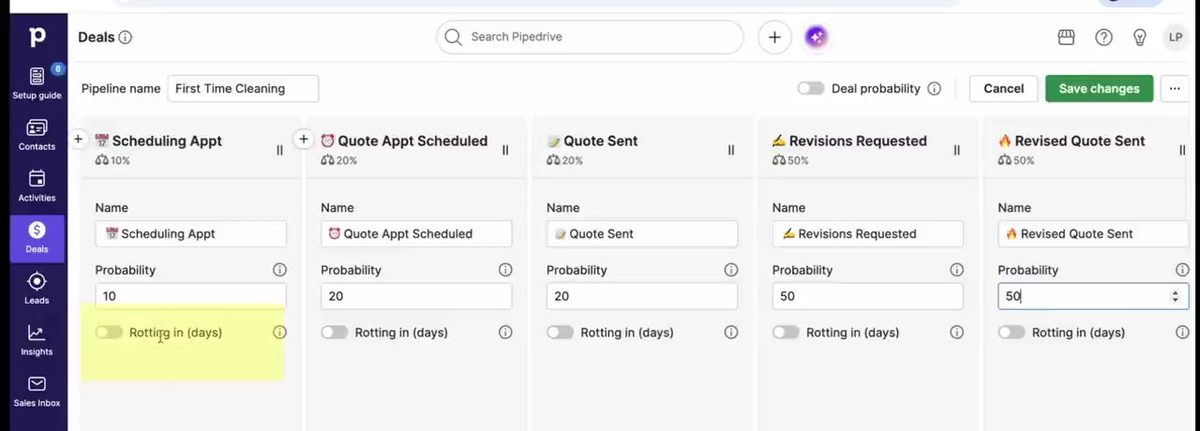
We recommend the following starting points for Probability and Rotting:
| Stage | Probability | Rotting |
|---|---|---|
| Scheduling Appointment | 10% | 2 days |
| Quote Appointment Scheduled | 20% | -- |
| Quote Sent | 20% | 3 days |
| Revisions Requested | 50% | 1 day |
| Revised Quote Sent | 50% | 3 days |
Add custom detail fields and service labels
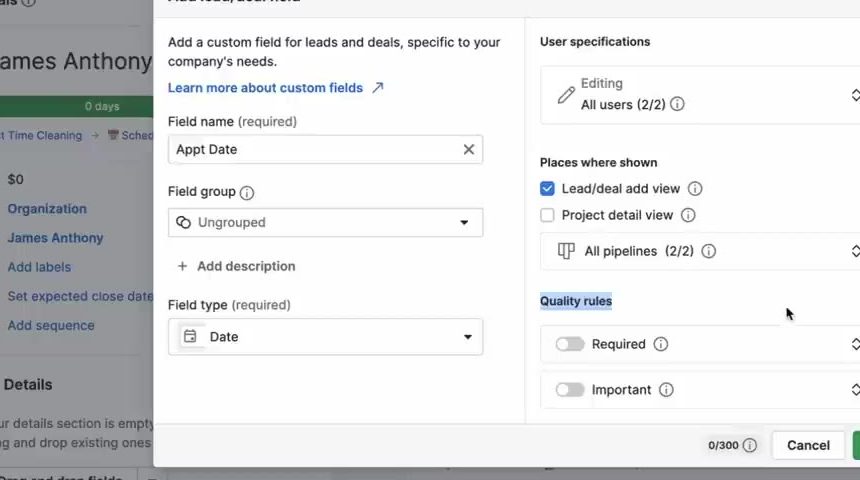
You can create custom Person, Organization, and Deal detail fields so that you can capture sales details specific to your process. To create custom Deal detail fields, open any deal and click the three dots next to Details and then click Customize fields.
Want us to set up your Pipedrive account for you for free? Request it here.
For window and gutter cleaning companies, we recommend the following custom detail fields in Pipedrive:
| Field Name | Field Type | Add Deal Window | Field Options |
|---|---|---|---|
| Quote Appointment Date | Date | ✓ | -- |
| Project Address* | Address | ✓ | -- |
| Source | Single option | ✓ | Referral, Facebook, Other advertising |
| Referrer | Person | -- | Any existing contact in your Pipedrive database |
*Store Project Address on the deal, not the person, since a customer may own more than one property
Want to store all estimate details as detail fields as well? Then you may want to also add these custom fields:
| Field Name | Field Type | Add Deal Window | Field Options |
|---|---|---|---|
| # of Stories | Single option | -- | Single, 2, 3+ |
| # of Small Windows | Numerical | -- | -- |
| # of Standard Windows | Numerical | -- | -- |
| # of Oversized Windows | Numerical | -- | -- |
| Gutters: Linear Feet | Numerical | -- | -- |
Make the right fields required at the right stage
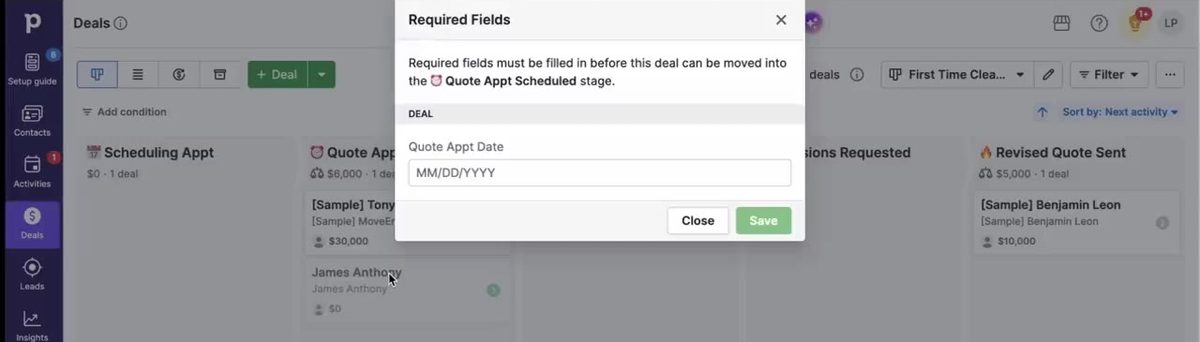
Use each field's quality rules to make it important one stage early and required in the stage where you must have it. Required fields block a deal from moving forward until they're filled in. For example, require Source as soon as the deal is added, and Quote Appointment Date and Project Address in Quote Appointment Scheduled.
Use labels for your services
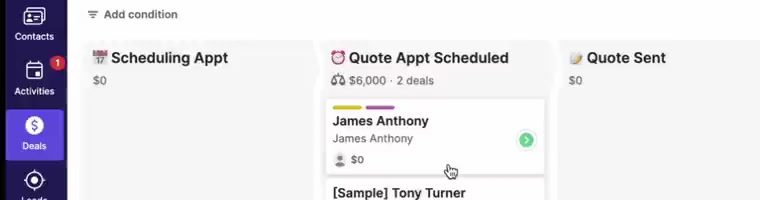
Labels show as colors on each deal card, so use them for the one thing you most want to see at a glance. In this example we recommend designating the service or service(s) of interest as the Deal Label. Create two labels, Gutter Cleaning and Window Cleaning. Labels allow multiple choices, so a job for both simply gets both labels; no third “Window & Gutter” label needed.
Creating your first deal
- Click + Deal, the + at the top of any stage, or press D.
- Type the homeowner's name. Pipedrive checks for an existing contact so you don't create duplicates.
- Add their phone and email, then click Save.
Most window and gutter customers are homeowners, so you usually only need a person, not an organization. Inside the deal you can schedule the quote appointment, add notes and photos, log calls and emails, and attach the quote.
Deal Statuses and marking deals won or lost
When the customer signs your quote, click Won on the deal or drag it into the “Won” bucket at the bottom of your Pipeline. Mark it won from the stage it closed in: a deal won in Quote Sent tells you the original quote closed with no revisions. If you lose a deal, click Lost and pick a lost reason.
Won and lost deals drop out of the default pipeline view once they are won or lost, but you can always find them again using Pipedrive's search bar. They drop out of the default pipeline view because that view only shows you Open deals. If you want to always be able to see ALL Deals, create a custom view that shows you all Open, Won, and Lost deals. And then pin it to the top of the Pipeline so you can easily toggle between views.
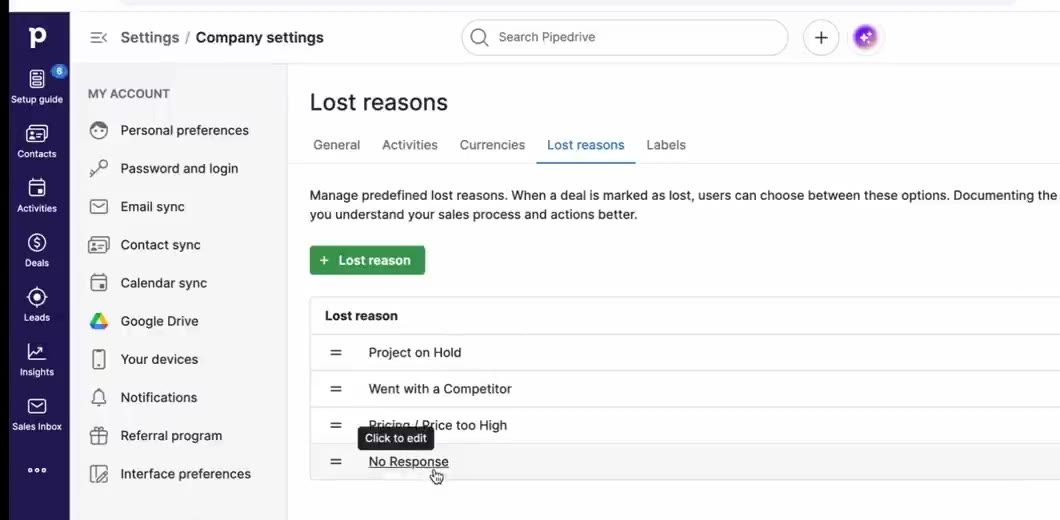
Set up your lost reasons in Company settings → Lost reasons:
- Toggle Allow free-form reasons off.
-
Then add custom lost reasons. Here are a few we recommend:
- No Response
- Price Too High
- Went with a Competitor
- Project on Hold
Tip: When a customer says “not this year, maybe next,” mark the deal lost as Project on Hold and schedule a follow-up for next season.
When they come back, add a new deal for the same person rather than reopening the old one, so your sales-cycle numbers stay accurate. Their person record shows every deal and conversation.
Setting up custom activity types
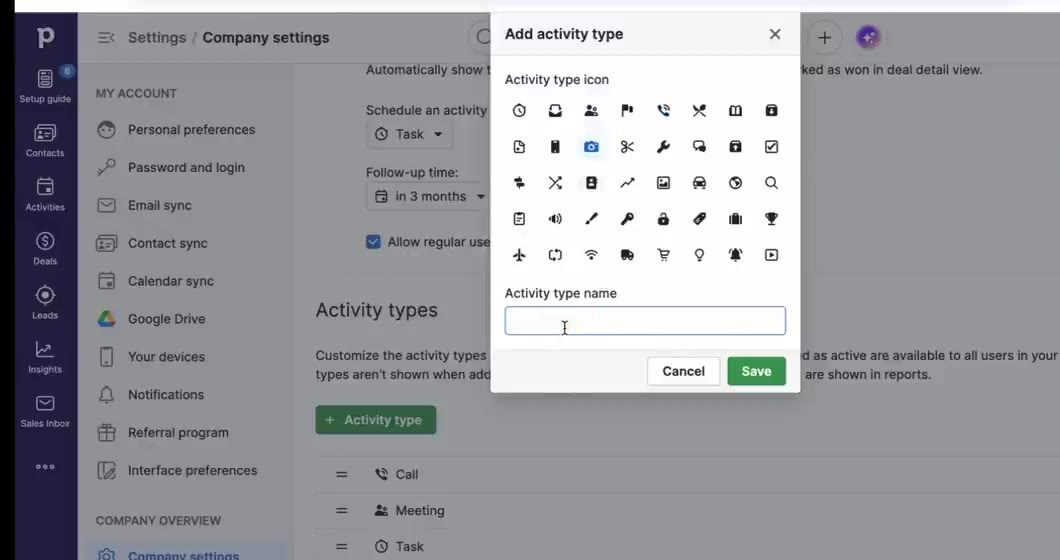
Custom activity types allow you to easily report on things like the number of quote appointments completed each week or the number of quotes sent out each month. To create custom activity types, open any deal, click the Activity tab, then the gear icon. Then add activity types that align with your process, such as Quote Appointment, Proposal Sent, and Proposal Follow-Up, and toggle off defaults like Lunch and Deadline.
Best practices working in Pipedrive
Each morning, go to Activities, filter to what's due today or overdue and assigned to you, and work down the list: open the deal, do the follow-up, mark it done, and schedule what's next.
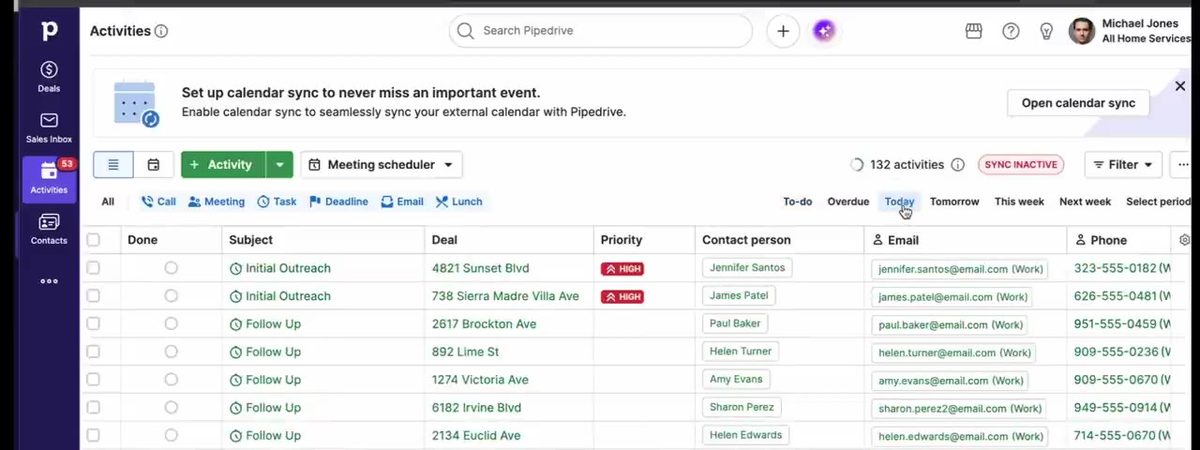
- New inquiry? Reach out right away to book the quote appointment. Did you leave a voicemail? Schedule an activity to reach back out tomorrow in case the prospect doesn't proactively call you back!
- Customer reviewing the quote after a two-week vacation? Schedule a check-in for 17 days from now.
- At a quote appointment? Add notes and photos of the property in the mobile app.
Remember, every open deal should always have a next planned activity. A yellow warning triangle on a deal card means nothing is scheduled, so that deal is at risk.
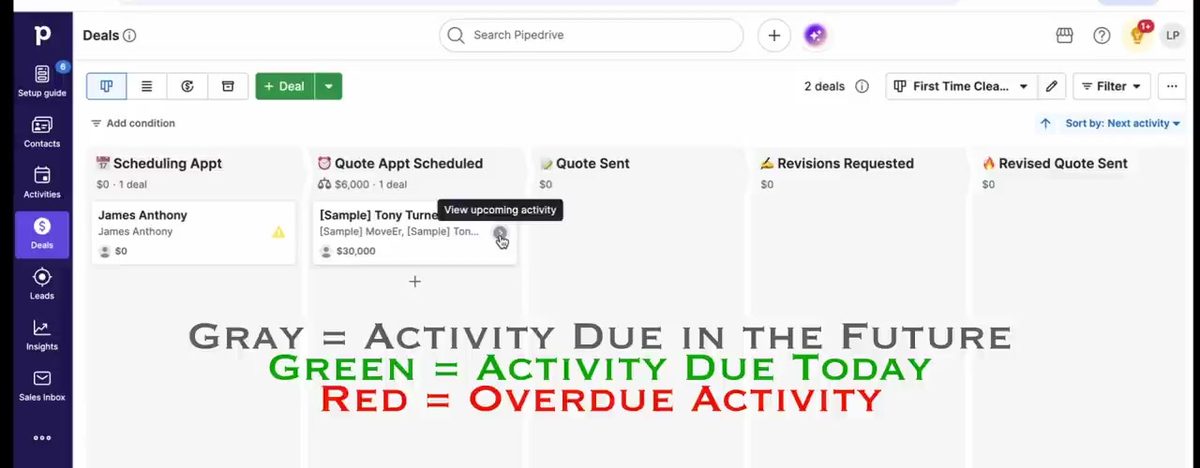
Once you've completed all activities assigned to you that are overdue or due today, then head on over to your Pipeline view. See any yellow triangles? Add a future planned activity to ensure you never miss a follow up!
Want 1:1 help setting up Pipedrive for your business?
If you're looking for the best Pipedrive consultant for home services companies, look no further. Book your working session with Ops Designed today.
Book a Working Session