
Pipedrive is a CRM (customer relationship management) platform. It keeps every sales conversation (emails, calls, texts, notes, and next steps) in one place, so nothing falls through the cracks.
This guide walks you through setting up Pipedrive the right way, so you can start using it for your business today.
Want a free Pipedrive setup guide specific to your business? Download it here.
In this guide we'll cover:
- Your 30-day free Pipedrive trial
- Deals, people, and organizations Explained
- Pipelines and Stage names
- Deal probability and deal rotting
- Creating your first deal
- Custom detail fields
- Deal Statuses: Won, Lost, & Open
- Pipedrive Activities
- Daily Best Practices
Prefer to watch? This video will walk you through every step detailed below:
Your 30-day free Pipedrive trial
- Start your extended 30-day free Pipedrive trial.
- Complete the signup form.
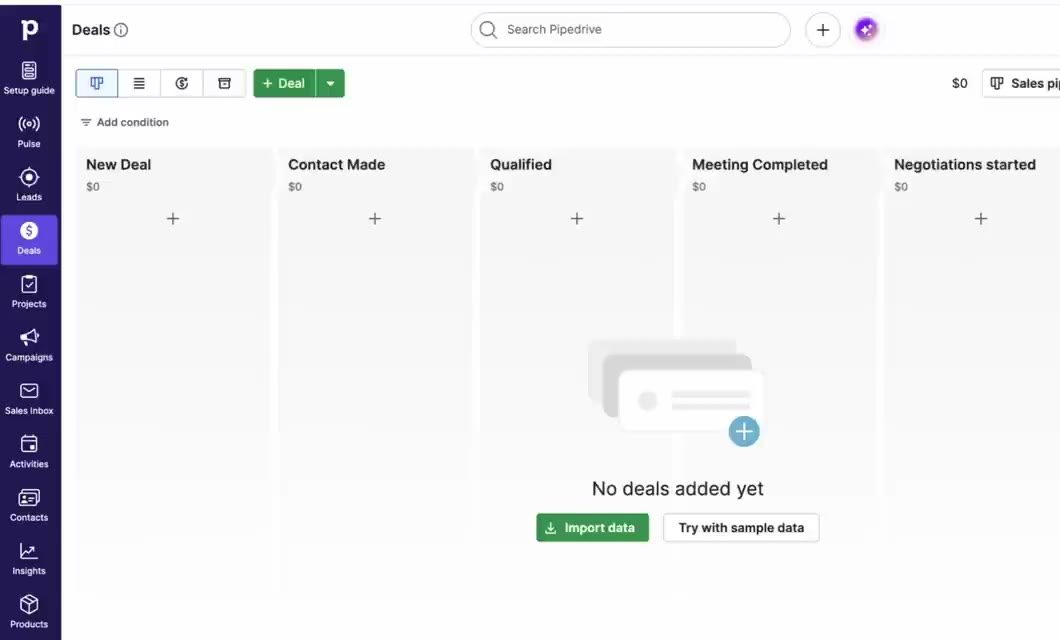
- Exit the onboarding flow and click Deals (the money icon in the left menu).
- If your pipeline is empty, click Try with sample data to get practice deals to follow along with.
 Claim Your 30-day Free Trial!
Pipedrive runs in your web browser, so there's nothing to install. It also has iPhone and Android apps. If you're often out in the field, download the app so you can add notes, photos, and voice memos while you're on site.
Deals, people, and organizations Explained
Each card in your pipeline represents a deal or a single sales opportunity. Every deal is linked to a person, an organization, or both.
Organizations are optional. If you sell to homeowners (B2C), you may never use Organizations. If you sell to both businesses and individuals, use Organizations when they apply.
Tip: Your Pipeline view is your home base! Deals move through stages of your Pipeline and ultimately get marked as won or lost. People do not. A single person from your database can have multiple Deals, so working each sales opportunity as a Deal will ultimately provide you with the most possible data about your sales.
You can view your deals three ways, using the icons at the top left of the Deals page:
- Pipeline view (the default): deal cards organized by stage.
- List view: a spreadsheet-style list you can filter, sort, and choose columns for.
- Forecast view: deals by expected close month. Each deal needs a value and an expected close date to appear here.
Pipelines and Stage names
Start by creating ONE pipeline for your CORE service.
A common mistake is creating a pipeline for each sales rep or each product. You only need another pipeline when a service has a fundamentally different sales process. For example, a full kitchen remodel (consultations, measurements, selections) needs a different pipeline than a retail cabinet sale (pick, proposal, signature). Add those later, once you're comfortable.
How to name your stages
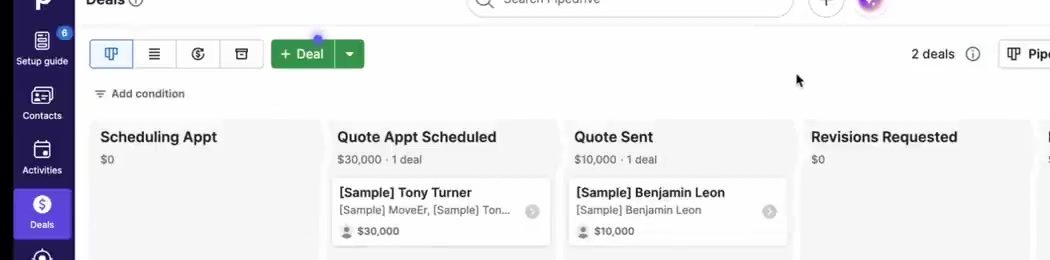
Use action-oriented, past-tense names so anyone on your team knows exactly when a deal belongs in each stage. Here's an example for a window and gutter cleaning company:
- Scheduling Appointment
- Quote Appointment Scheduled
- Quote Sent
- Revisions Requested
- Revised Quote Sent
Avoid vague names like “New,” “Quoting,” or “Following Up.” Is a deal “Quoting” while you prepare the quote, or after you've sent it? Past-tense names remove the guesswork.
Notice there's no “Quote Signed” or “Won” stage. Won and lost are statuses, not stages (more on that below).
Tip: Add emojis to stage names, activity types, and lost reasons to make Pipedrive even easier to scan.
To edit the stages of your existing pipeline:
- On the Deals page, click the pencil (edit) icon at the top of your pipeline.
- Rename stages, click + to add one, or delete stages you don't need.
- Rename the pipeline itself if you'd like, then click Save.
Want recommended stages and fields for your type of business? Download your free Pipedrive Setup Guide.
Deal probability and deal rotting
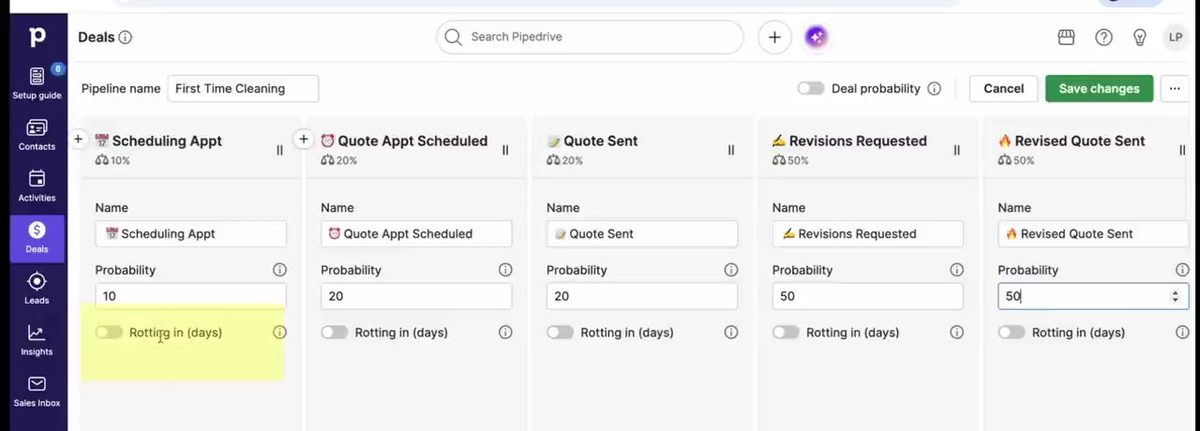
Both settings can be edited exactly where you edited your stage names (click the pencil icon on the top right of your setup page).
Probability
Probability is the percent chance you'll win a deal once it reaches a particular stage. Typically this is lowest on the lefthand side and highest in later stages such as Quote Sent. Pipedrive uses it to show a weighted value for each deal, each stage, and your whole pipeline (a $10,000 deal at 20% probability has a weighted value of $2,000).
Don't overthink it. Just start with a rough estimate. Once you've used Pipedrive for a while, you can run a report on your actual win rates by stage and update these numbers.
Deal rotting
Rotting flags deals that are going stale. If a deal sits in a stage for a set number of days with nothing happening (no emails, notes, or calls), its card turns pink. It's an easy way to see who needs a follow-up.
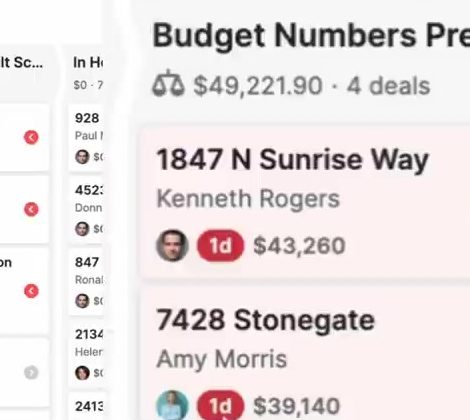
Turn rotting on only in stages where you should be reaching out. In our example:
- Scheduling Appointment: 2 days
- Quote Appointment Scheduled: off (nothing to do until the appointment)
- Quote Sent: 3 days
- Revisions Requested: 1 day (the owner needs to approve revisions quickly)
- Revised Quote Sent: 3 days
Creating your first deal
- Click the green + Deal button, the + at the top of any stage, or press D on your keyboard.
- Type the person's name. Pipedrive checks your existing contacts so you don't create duplicates.
- Add their phone and email (and company if it's a B2B deal).
- Click Save.
Open the deal to see everything you can do with it:
- Schedule activities for yourself or a teammate
- Add notes, and pin the important ones to the top
- Log emails, calls, and texts (with email sync or a calling integration)
- Upload files and photos (great from the mobile app on site)
- Create proposals with Smart Docs and book meetings with the Scheduler
You can also bring deals in by import or by connecting your web forms.
Custom detail fields
Custom fields capture the details that matter to your sales process, in a format you can filter and report on.
- Open any deal and click Customize fields, then Add custom field.
- Name the field and choose the most specific field type you can.
- Check whether it should appear in the Add deal window.
- Set quality rules: make the field required in the stage where you must have it, and important in the stage before.
- Click Save.
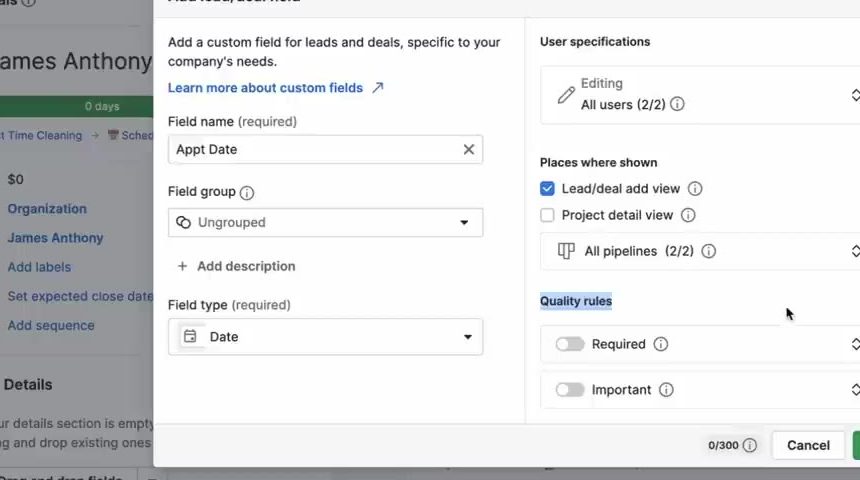
Tip: Avoid text fields wherever possible. They're hard to filter and report on. Use a date field for dates, an address field for addresses, and option fields for set choices.
Quality rules teach your team what to capture and when. Important fields float to the top of the deal under Please fill. Required fields block the deal from moving into that stage until they're filled in, whether you move it from the deal or drag it in the pipeline.
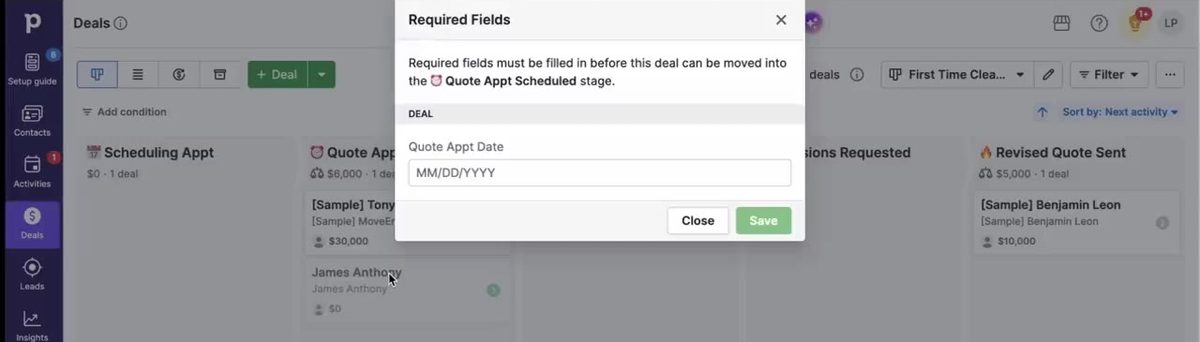
Example fields for our window and gutter cleaning company:
| Field Name | Field Type | Add Deal Window | Required |
|---|---|---|---|
| Quote Appointment Date | Date | ✓ | Quote Appointment Scheduled stage |
| Project Address* | Address | ✓ | Quote Appointment Scheduled stage |
| Source | Single option | ✓ | Scheduling Appointment stage |
| Referrer | Person | -- | -- |
*Store Project Address on the deal, not the person, since a customer may own more than one property
Pro Tip: You can always add more custom fields later, so to start, just add a few known essentials.
Use labels for one thing
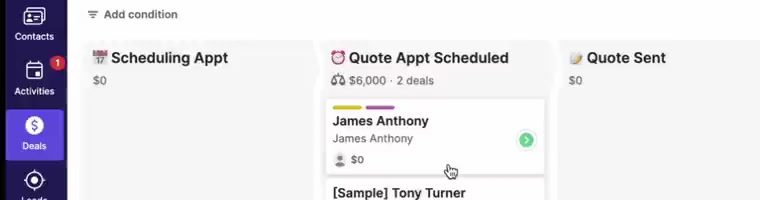
Labels are a color-coded multiple-option field that shows on the deal card in your pipeline. Don't cram several types of information into them. Pick the one thing you most want to see at a glance. Our example uses two labels: Gutter Cleaning and Window Cleaning. A deal for both gets both labels.
Deal Statuses: Won, Lost, & Open
Stages show where a deal is in your process. Statuses show its end state: open, won, or lost.
Mark a deal as won or lost within the exact stage where it was won or lost. That captures how far the Deal progressed before it reached its end state. For example, a deal won in the “Quote Sent” stage didn't require any revisions. And that's important information to track.
Set up lost reasons
- Go to Company settings and click Lost reasons.
- Add a short list of actionable reasons, such as No Response, Price Too High, Went with a Competitor, and Project on Hold.
- Turn off free form reasons so your team picks from the list.
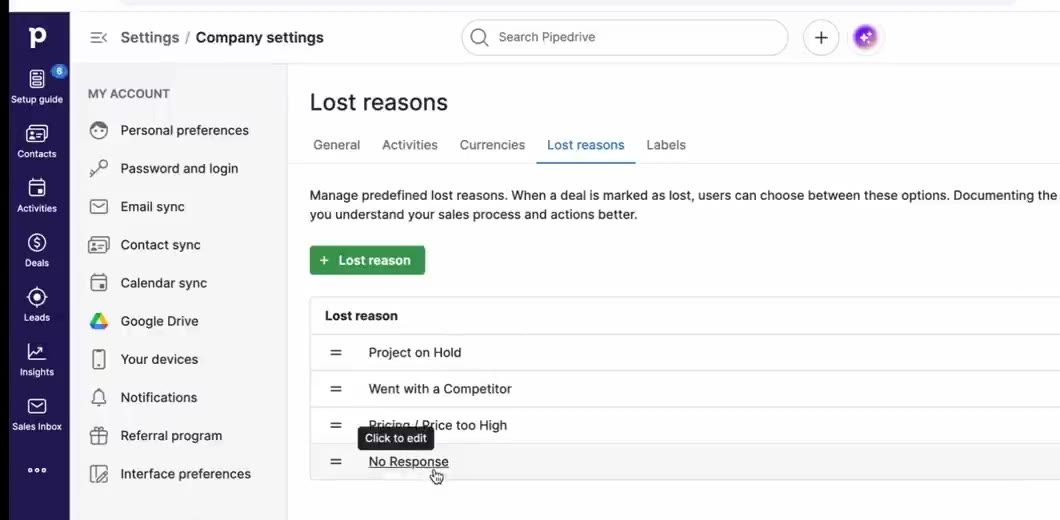
Actionable reasons pay off later. If you change your pricing or add a service, you can pull every deal lost for that reason and reach out.
When a lost deal comes back, consider adding a new deal for the same person instead of reopening the old one. Reopening makes it look like the deal was open the whole time. The person's record still shows their full history across every deal.
Pipedrive Activities
Activities are the heart of Pipedrive: the right touchpoint at the right time is how you win more deals.
Customize your activity types
- Open a deal, click the Activity tab, then the gear icon.
- Add activity types that match your process, such as Quote Appointment, Proposal Sent, and Proposal Follow-Up.
- Toggle off the defaults you don't need, like Lunch or Deadline.
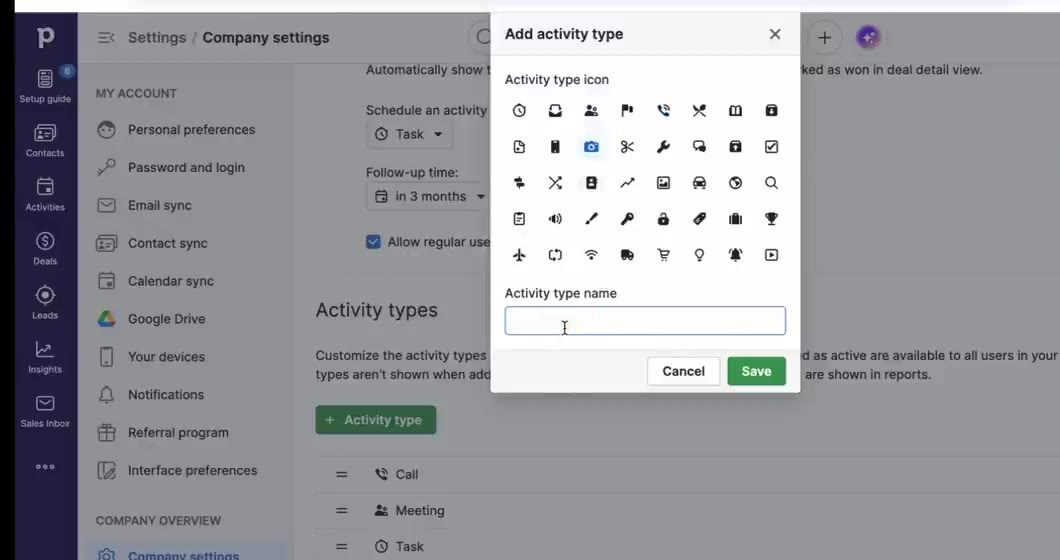
Specific activity types let you report on things like how many on-site visits each rep does per week.
Always schedule the next activity
Every open deal should have a next planned activity. The icon on each deal card tells you where things stand:
- Gray circle: an activity is scheduled in the future
- Green circle: an activity is due today
- Red circle: an activity is overdue
- Yellow warning triangle: nothing is scheduled, so this deal is at risk
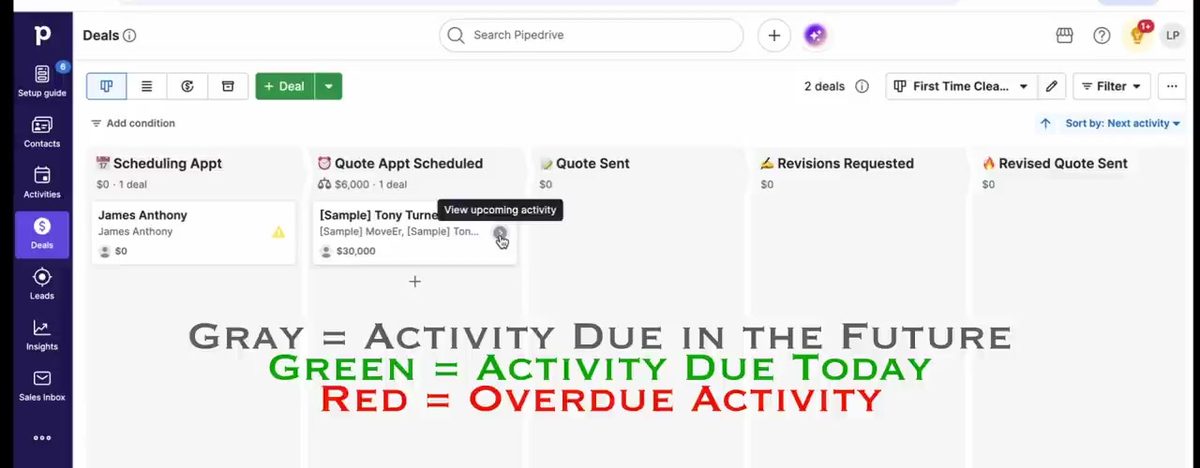
When you see a yellow triangle, schedule your next follow-up. If the customer replies first, just mark the activity done and schedule the next one.
Daily Best Practices
Work from Activities (in the left menu), not the pipeline. Filter to activities that are due today or overdue and assigned to you, then work down the list: open the deal, do the follow-up, mark it done, and schedule what's next.
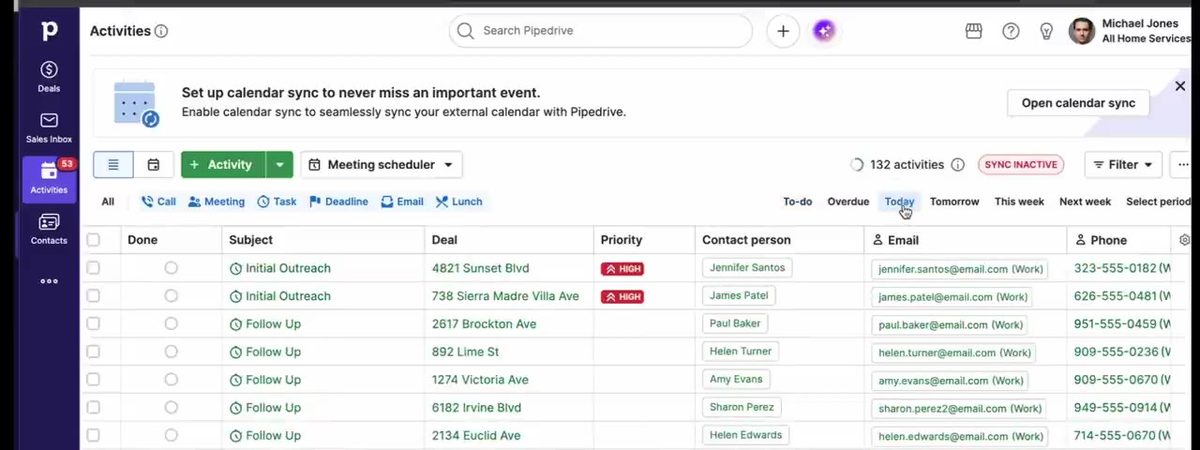
Keep Pipedrive open in a browser tab and use it whenever a sales conversation comes up:
- New text from a prospect? Add a person and a deal.
- A customer says they'll review your quote after a two-week vacation? Schedule a check-in for three weeks out.
- Heading to a quote appointment? Take notes and photos in the mobile app.
The more you use Pipedrive, the faster you'll see the impact on your business.
Guides for your industry
Looking for Pipedrive setup recommendations for your industry? Download your free Pipedrive Setup Guide or check out one of our industry specific guides:
What's next
Once you're comfortable, take the next steps: email sync with open and click tracking, email templates, custom field groups, deal card customizations, the Leads Inbox, and interface preferences. Start with The Ultimate Guide to Pipedrive Email.
Rather learn with a guide by your side? As a Pipedrive Gold Partner, Ops Designed is a Pipedrive trainer and instructor for small business teams, with organized, reliable onboarding that gets your whole team working in Pipedrive quickly.
Want help getting set up?
If you're looking for the best Pipedrive consultant for fast Pipedrive onboarding, look no further. Book your working session with Ops Designed today.
Book a Working Session